Review #
Introduction to Review #
The Review feature supports content discussion and change approval in collaborative editing. Collaborators can add comments to specific parts of a document, track changes made by other collaborators, and discuss individual comments or changes directly within the document.
Comments #
Select text in the document to add a comment with feedback, suggestions, or additional context.
Other collaborators can continue the discussion by adding comments and replies in the same thread. This keeps each discussion associated with the relevant text and makes it easier for multiple collaborators to communicate about a specific part of the document.
Comments do not directly modify the document content. They are useful for discussions, revision suggestions, and recording issues during the review process.
Track Changes #
When Track Changes is enabled, changes made to the document by different collaborators are recorded automatically, with each change attributed to the collaborator who made it.
Each change can also have its own discussion. Collaborators can add comments and replies to a specific change, making it possible to discuss a revision before deciding whether to keep it.
For each change, you can:
- Accept Change: Keep the change and apply it to the document.
- Reject Change: Discard the change and restore the previous content.
Track Changes makes it easy to see what has been modified during collaboration and to review each change individually before deciding whether it should be kept or discarded.
Review Items #
The Review panel provides a centralized view of comments and tracked changes in the document. You can choose which review items to display and process depending on your current task.
You can select:
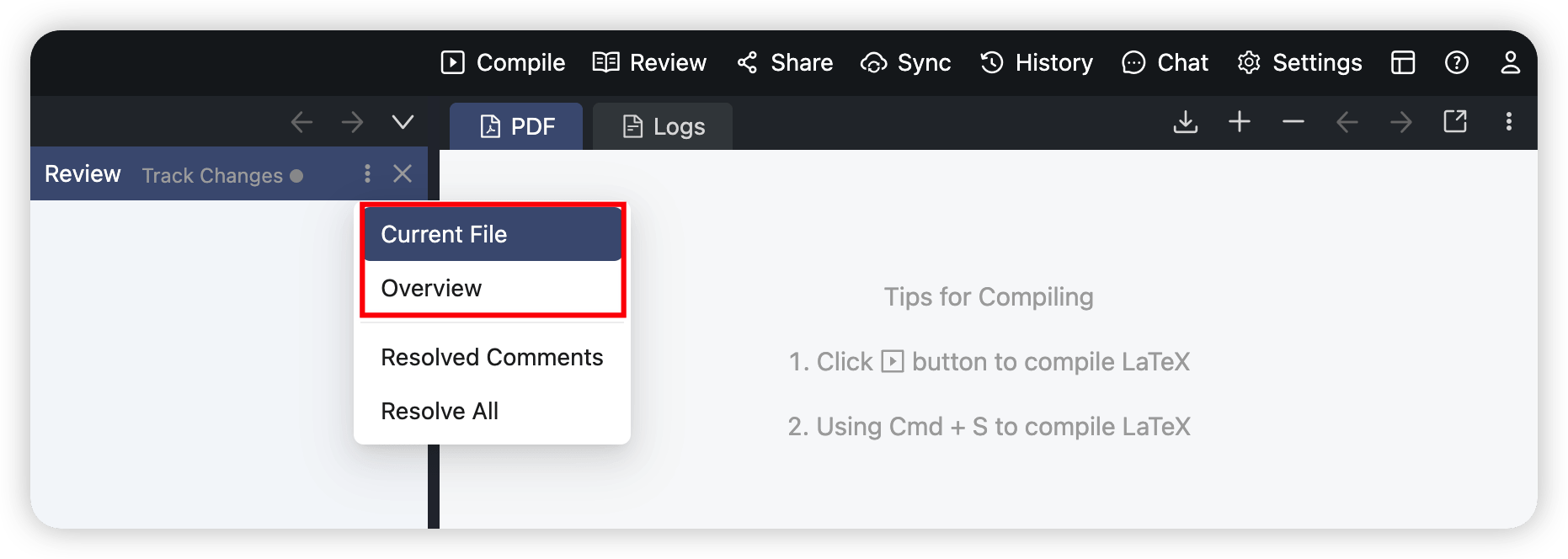
- Current File: View only the review items in the current file, making it easier to focus on the content you are currently editing.
- Overview: View review items from all files in the project, providing an overview of the review status across the entire project.
Resolved Comments #
Once a comment has been addressed, you can mark it as resolved so that discussions that still require attention are easier to identify.
Resolved comments are retained and can be reopened at any time if further discussion is needed.
Resolve Review Items in Bulk #
When multiple review items no longer require further attention, you can resolve them in bulk:
- Resolve All: Resolve all review items within the current scope at once.
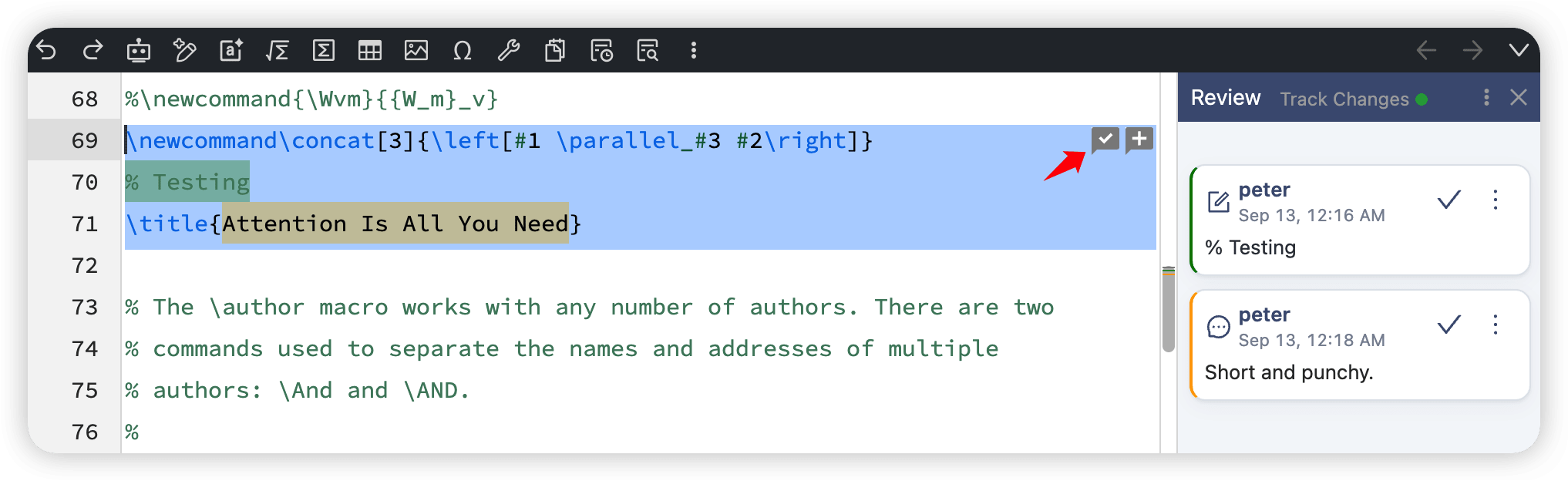
- Resolve Review Items in Selected Text: If the selected text contains multiple review items, you can resolve all review items associated with that selection at once instead of processing them individually.
These actions reduce repetitive work during collaborative editing and large review sessions, making it more efficient to finalize a document.
How to Use Review #
Open the Review Panel #
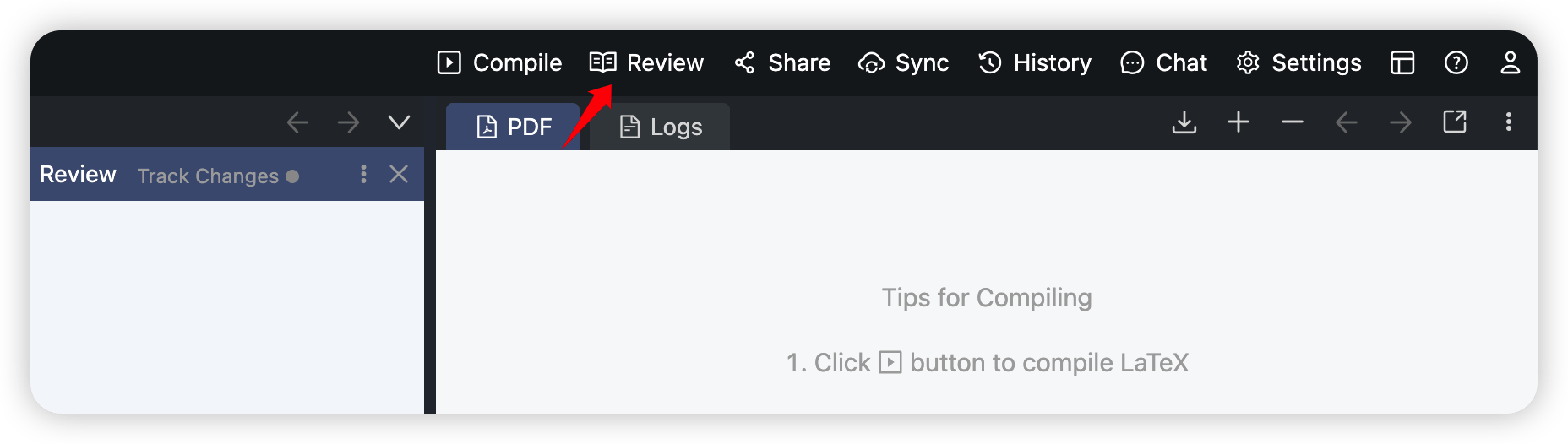
Click Review at the top of the editor to open the Review panel on the right side of the editor.
Change the Review Scope #
Click the ⋮ button in the upper-right corner of the Review panel, then select Current File or Overview from the menu to change which review items are displayed.
Add and Resolve Comments #
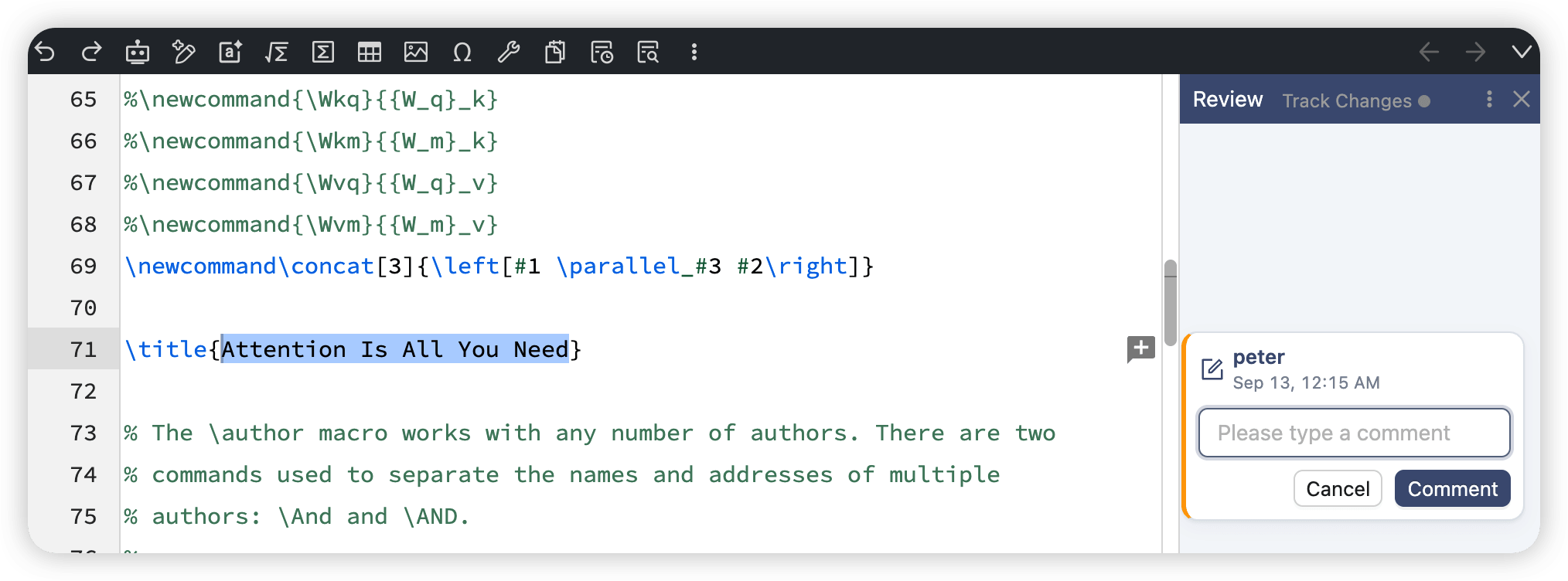
Select text in the editor. An Add Comment button will appear to the right of the current line. Click the button to add a comment to the selected text.
After a comment has been added, collaborators can continue the discussion by adding comments or replying to other collaborators.
When a comment has been addressed, click the ✓ button in the comment to mark it as resolved. Resolved comments are retained and can be reopened whenever needed.
Use Track Changes #
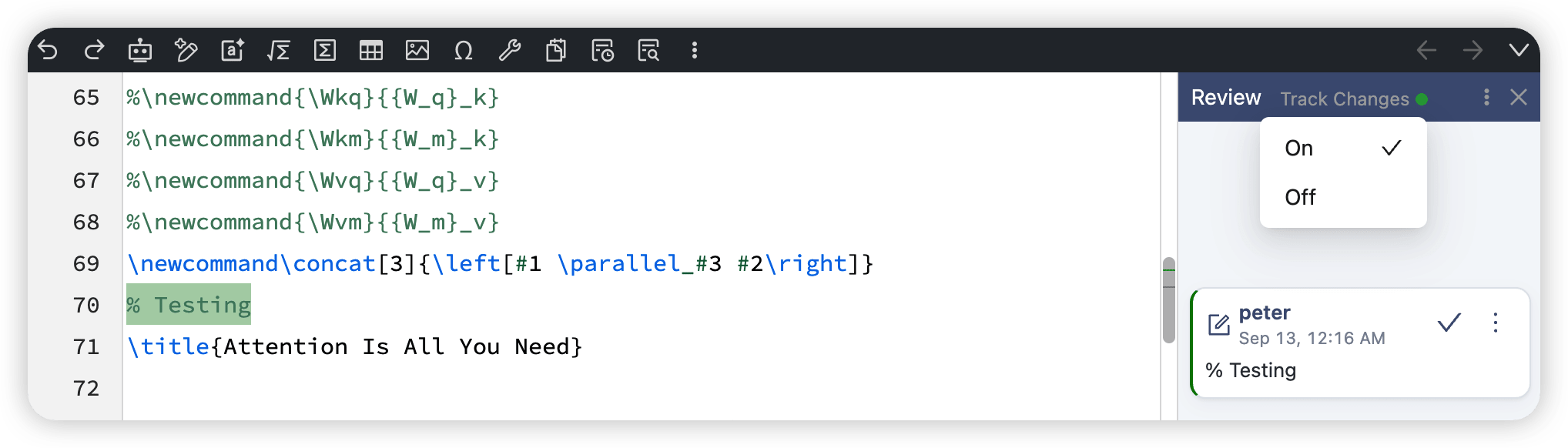
Click Track Changes at the top of the Review panel, then select On from the menu. Once enabled, changes made to the current document will automatically be recorded as review items.
For changes recorded by Track Changes, you can accept or reject each change. You can also add comments and participate in discussions about a specific change.
Resolve Review Items in Bulk #
Click the ⋮ button in the upper-right corner of the Review panel, then select Resolve All from the menu to resolve all review items at once.
When the text selected in the editor contains review items, a ✓ button for bulk resolution will appear to the right of the selection. Click the button to resolve all review items associated with the selected text at once.